Screenshots & Gallery
Browse screenshots and visual highlights of TikTok Desktop in action. These images showcase the app interface, feature workflow, and how the desktop client brings the TikTok social experience to your computer.
Main Interface Screenshots
Below are some key visual glimpses of TikTok Desktop.
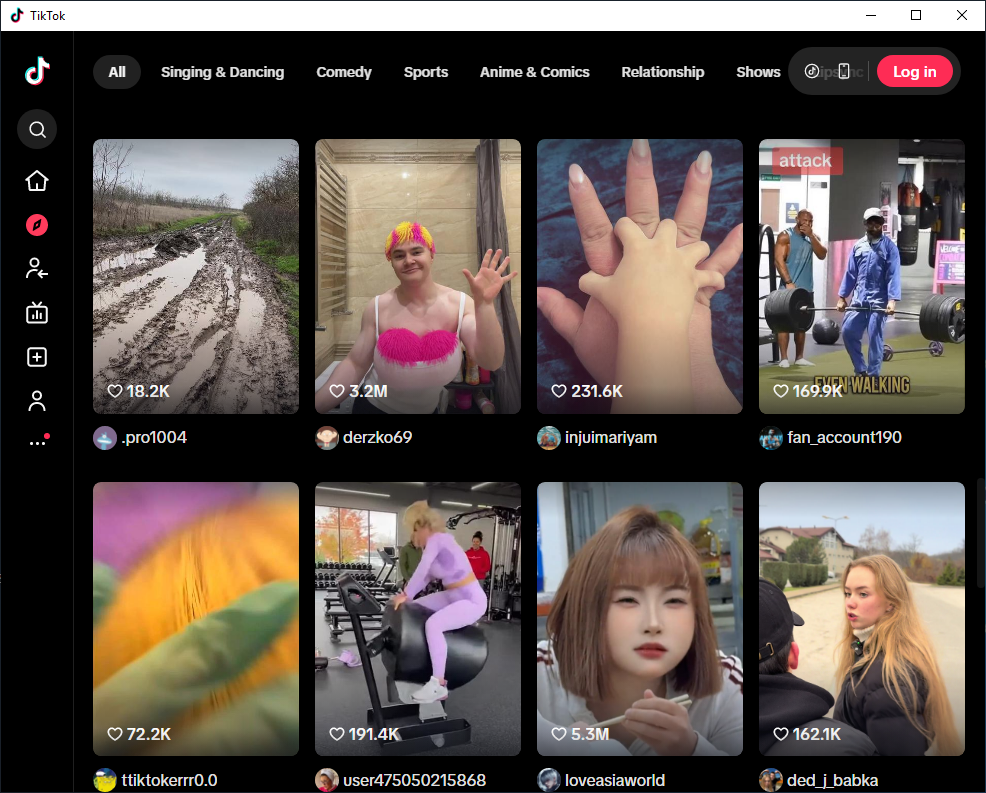
Home Feed View
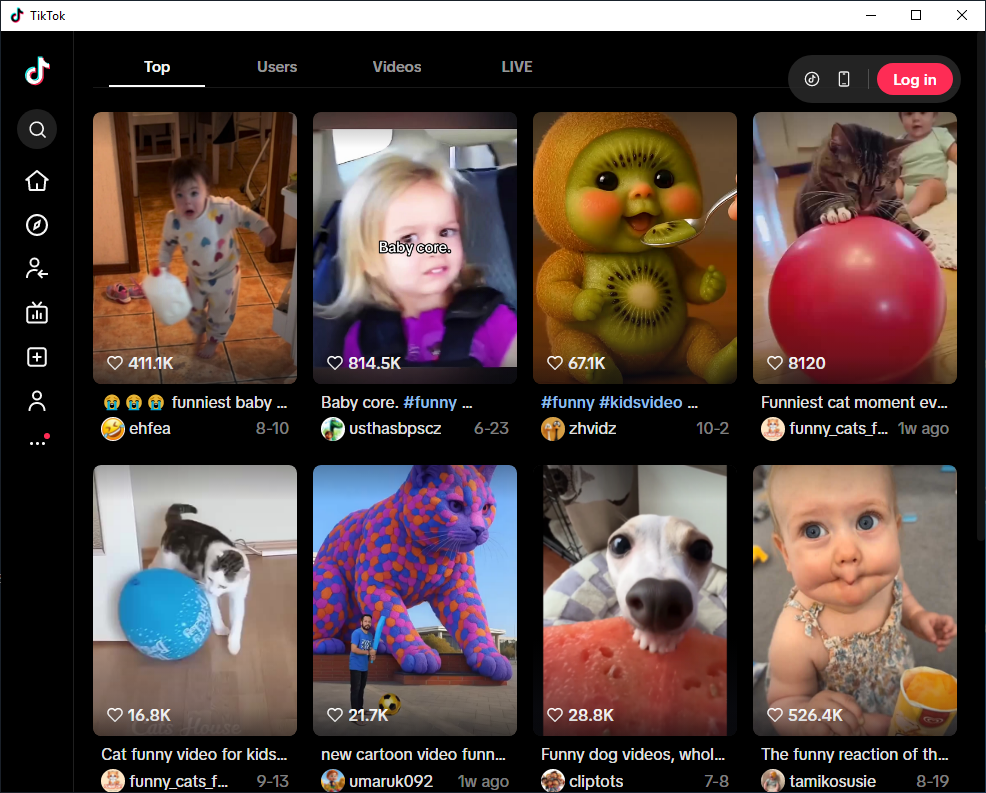
Friends search

Login screen
Want more screenshots? You can add additional images in the repository by contributing.
Desktop Experience Highlights
The TikTok Desktop UI is designed to give a familiar and powerful desktop experience. Like other desktop clients of social platforms, this application aims to bring:
- Clean, responsive feed layout you’d expect on desktop environments.
- Multiple views such as Following and For You feeds side-by-side.
- Automatic updates and real-time feed refresh without manual reloads.
Some desktop views are inspired by the web and app interfaces of TikTok’ own desktop experience.
Add Your Own Screenshots
If you’re a contributor or developer, add new screenshots to this gallery by placing them in the
/assets/images/ directory and updating this file with new blocks.
Well-captioned screenshots improve project’s visibility and user guidance for everyone.
Explore the Project
📥 Installation
Learn how to install and set up TikTok Desktop on your system.
📖 Usage Guide
Step-by-step instructions on using TikTok Desktop daily.
⭐ Features
Detailed feature breakdown.
🏠 Home
TikTok Desktop homepage.
⬇️ Downloads
Get the latest releases, installers & binaries.
📜 Changelog
Detailed changelog breakdown.
🤝 Contributing
How to help improve TikTok Desktop.
Explore our other projects
💻🖥 Other Desktop Projects
View our other Desktop projects that bring popular apps to your Windows PC.