Installation Instructions
Follow these steps to install Threads Desktop on your Windows computer. This guide covers everything from downloading the application to getting it up and running smoothly.
Step 1: Download the Installer
Download latest release.
Or visit the Downloads & Releases page to get desired Windows installer build for Threads Desktop. Always make sure you download the version that matches your system architecture.
The official Releases page will contain installer binaries and release notes for each version. Keeping up with the latest release ensures you get the newest features and bug fixes.
Step 2: Run the Installer
- Locate the installer file you downloaded (usually in your browser’s Downloads folder).
- Double-click the installer (`Threads.desktop.install.exe`) to begin the installation.
- If Windows prompts you with a security warning, confirm that you want to allow the installation.
- Follow the on-screen instructions to complete the setup.
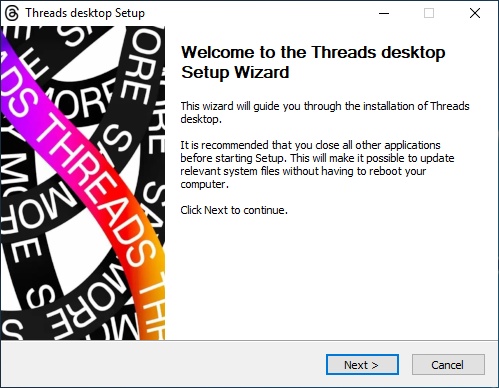
Click "Next" to start installation of Threads Desktop
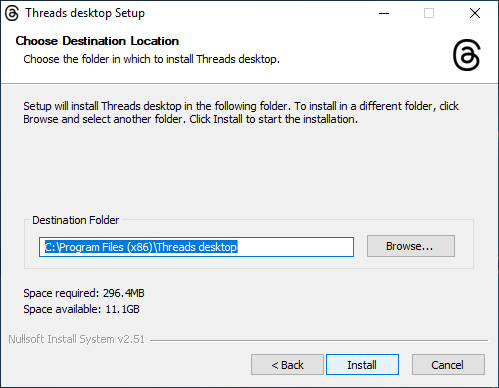
Select where to install Threads Desktop and click "Install" and wait
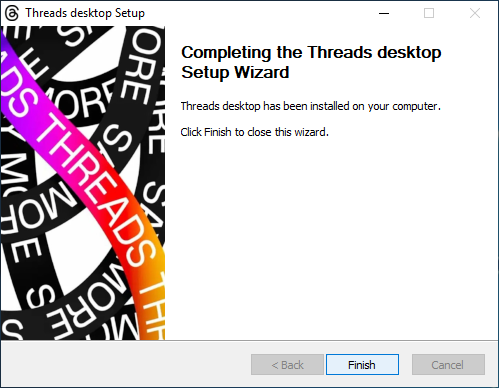
Installation is done, now click "Finish" to open Threads Desktop
Once installation completes, the application icon will be available on your desktop.
Step 3: Launch Threads Desktop
After installation, launch Threads Desktop by opening it from your Start Menu or desktop icon. Log in using your Instagram credentials when prompted to access your Threads feed and start interacting.
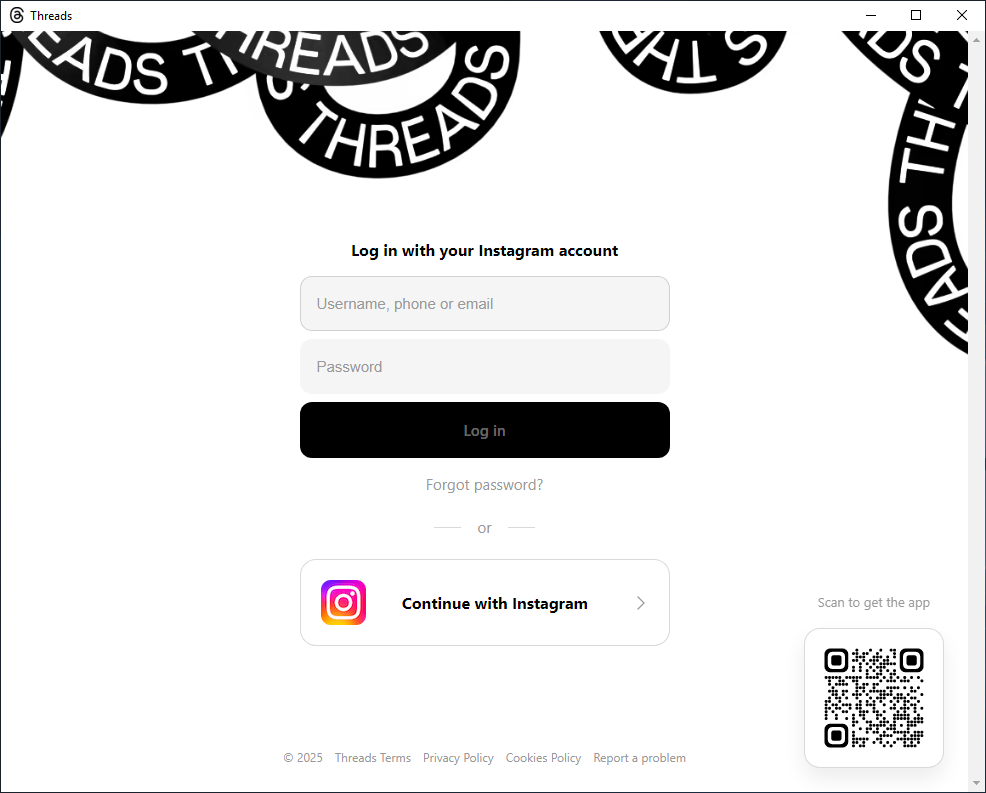
For best results, ensure your network connection is stable and that you have created a valid Threads profile beforehand using the mobile app or the Threads web interface.
Troubleshooting & Tips
- If the installer doesn’t run, right-click the file and choose “Run as Administrator” — this often resolves permission issues during installation.
- Ensure your operating system meets the minimum requirements (Windows Vista/7/8/8.1/10/11, 64-bit system).
- If you have issues logging in after installation, make sure your Threads account is set up and working via the mobile app or the official Threads web interface first.
More Help
If you encounter issues that aren’t resolved with the steps above, check the project’s source repository or open an issue for support. You can also refer to community resources for help using GitHub Desktop or other tools if you are building or contributing to the project locally before installation.
Explore the Project
🏠 Home
Threads Desktop homepage.
📖 Usage Guide
Step-by-step instructions on using Threads Desktop daily.
⭐ Features
Detailed feature breakdown.
🖼️ Screenshots
Visual tour of the interface and key features.
⬇️ Downloads
Get the latest releases, installers & binaries.
📜 Changelog
Detailed changelog breakdown.
🤝 Contributing
How to help improve Threads Desktop.
Explore our other projects
💻🖥 Other Desktop Projects
View our other Desktop projects that bring popular apps to your Windows PC.