How to Use Google Translate Desktop
This guide shows you how to interact with Google Translate Desktop — from translating single words to translating content and business documents.
1. Starting Google Translate Desktop
To start using Google Translate Desktop, launch the app after installation.
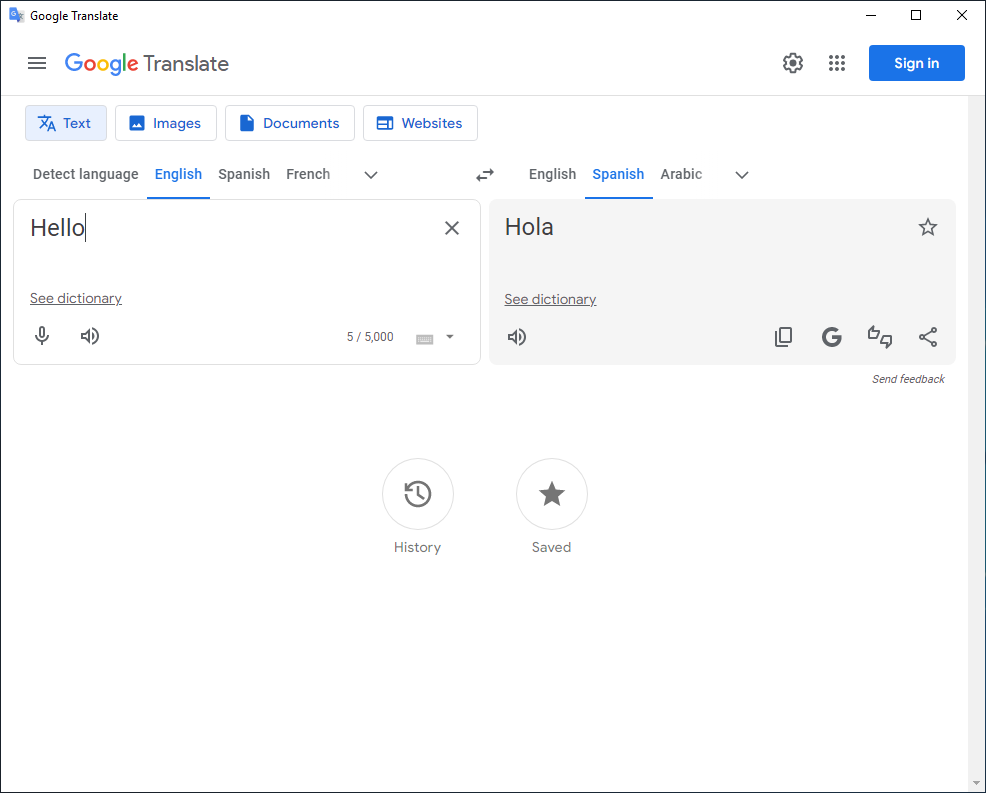
You will be prompted with a familiar Google Translate page, and you can use it immediately!
2. Navigating the Interface
Once opened, you’ll be greeted with the main Google Translate interface — typically a two windows, in left you input some text and in right the translation of same text. The layout is designed to be user friendly, optimized for desktop screens.
Google Translate Desktop also lets you switch between modes (e.g., “Documents” and “Images”) to translate not only text but other type of content, similar to the official Google Translate web experience.
3. Translating a document with Google Translate Desktop
To translate a document:
- Click the “Documents” button in the top area of the interface.
- Upload your document, by selecting one on your computer
- You can include PDFs, Word, TXT or other type of documents.
- Press “Open translation” to open your translated document.
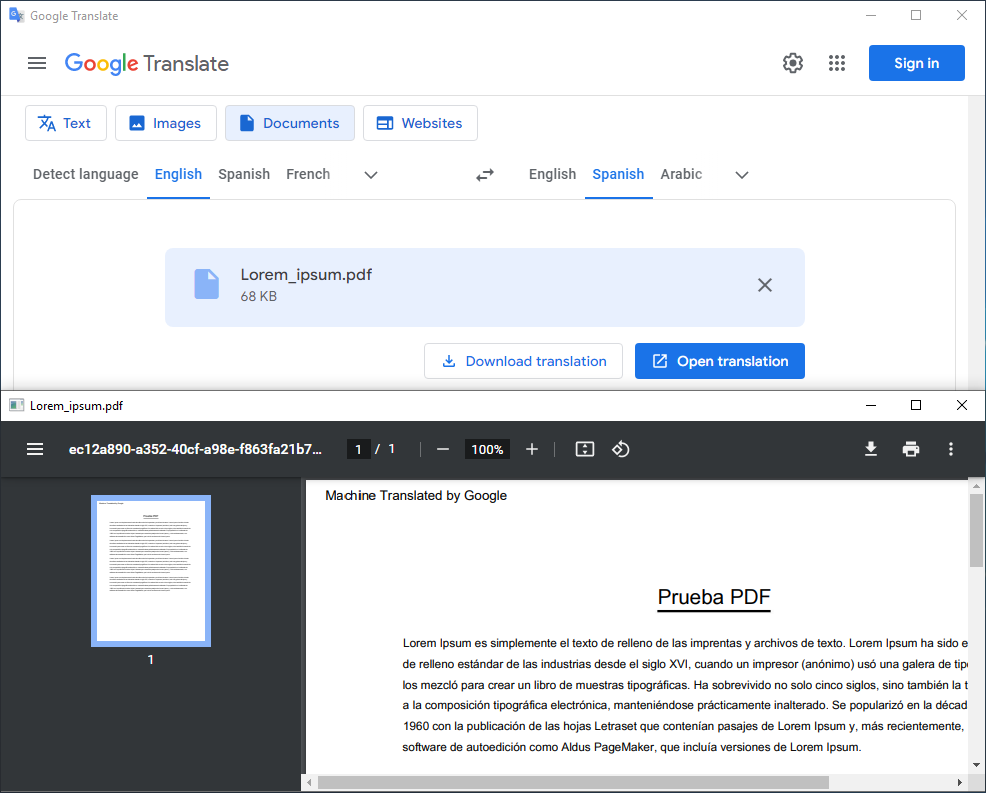
In general, in Google Translate Desktop you can translate any type of documents, what is essential to work with international clients.
4. Translating an image with Google Translate Desktop
To translate an image:
- Click the “Images” button in the top area of the interface.
- Upload your image, by selecting one on your computer
- You can include PNGs, WEBPs, JPEG or other type of images.
- Press “Download translation” to save your translated image.
Not only Google Translate Desktop translates images, but it also recognises text on the image and reads it, so you don't need to type it in.
5. Translating a website with Google Translate Desktop
This makes it easy to explore topics and information or content that matters to you if it is written with another language.
Tips & Best Practices
- Keep Google Translate always open, and use shortcuts to paste and copy text.
- Use website translations to expand your reach.
- Log in to see your translation history.
Explore the Project
📥 Installation
Learn how to install and set up Google Translate Desktop on your system.
🏠 Home
Google Translate Desktop homepage.
⭐ Features
Detailed feature breakdown.
🖼️ Screenshots
Visual tour of the interface and key features.
⬇️ Downloads
Get the latest releases, installers & binaries.
📜 Changelog
Detailed changelog breakdown.
🤝 Contributing
How to help improve Google Translate Desktop.
Explore our other projects
💻🖥 Other Desktop Projects
View our other Desktop projects that bring popular apps to your Windows PC.