How to Use ChatGPT Desktop
This guide shows you how to interact with ChatGPT Desktop — from logging in and navigating the interface to asking questions and learning.
1. Signing In
To start using the ChatGPT desktop app, launch it after installation and sign in with your OpenAI account. Once authenticated, your conversations and preferences will sync automatically across devices.
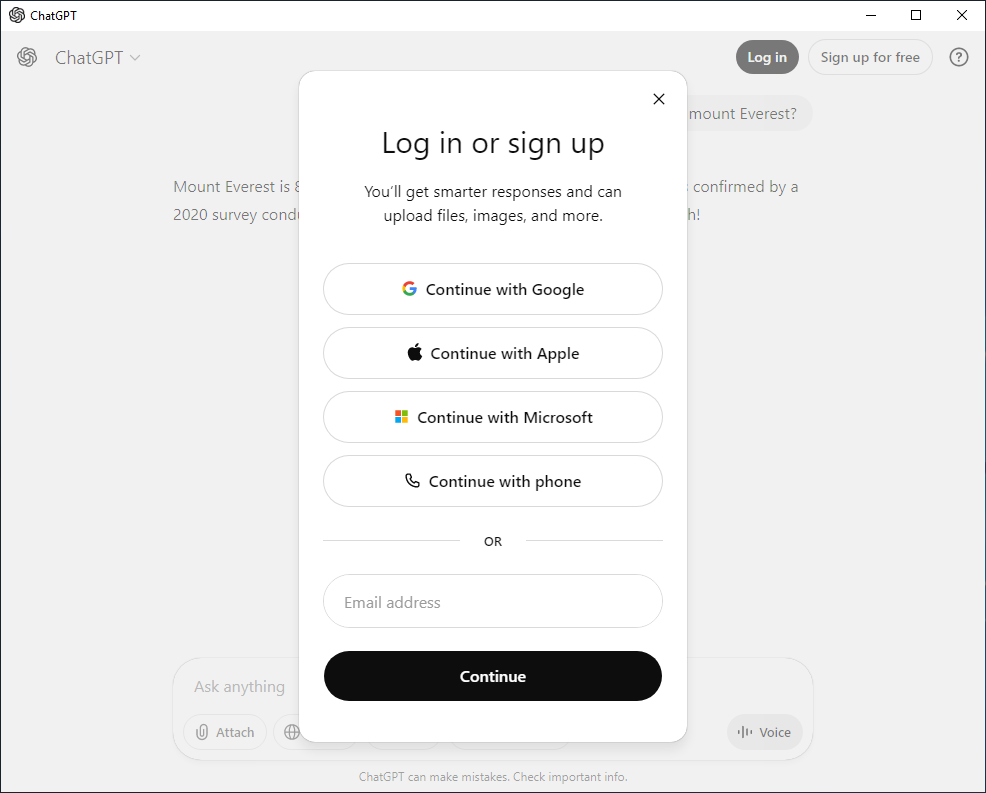
If you experience login issues, ensure your account credentials are up to date and that you’re using the same sign-in method (email, Google, or Apple) associated with your OpenAI account.
2. Navigating the Interface
After signing in, you’ll arrive at the main ChatGPT interface, where you can view your current conversation and access previous chats from the sidebar. The layout is optimized for desktop use, making it easy to switch contexts and manage multiple tasks.
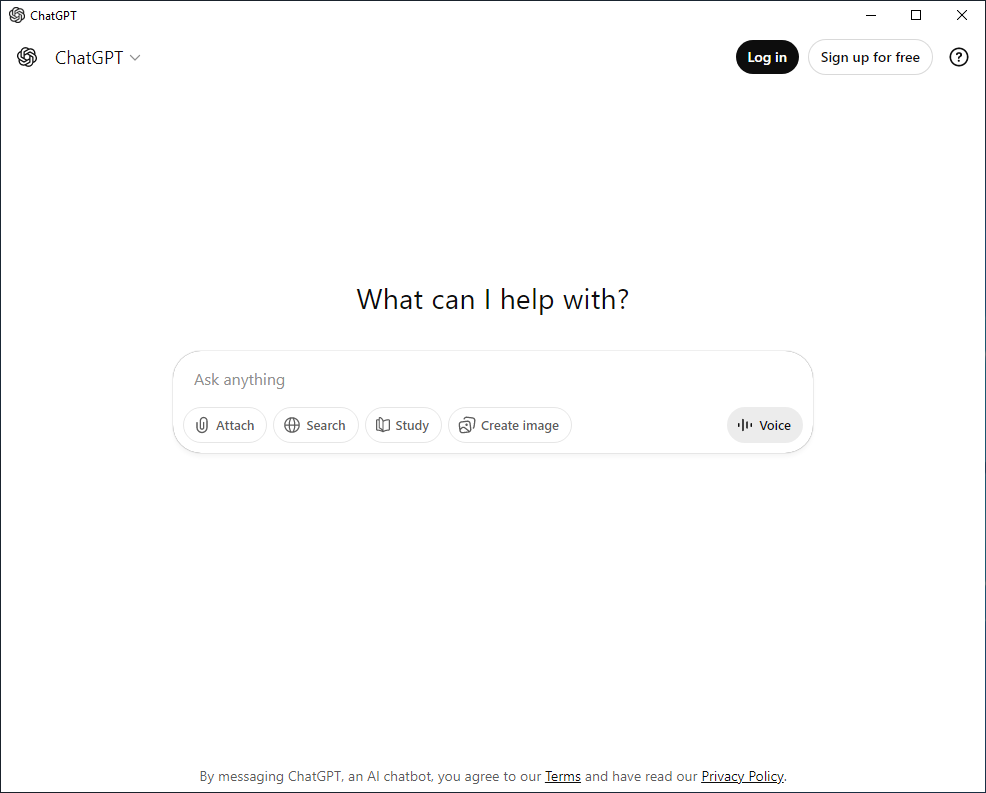
You can create new conversations, revisit older ones, or organize your workflow without leaving the app, helping you stay focused while working on complex or ongoing projects.
3. Starting a New Conversation
To begin a new chat:
- Click the “New Chat” button in the sidebar.
- Type your prompt, question, or idea into the input field.
- Press Enter to receive a response instantly.
- Continue refining the conversation with follow-up prompts.
ChatGPT is designed for iterative interaction, allowing you to explore ideas, refine answers, and build on previous responses naturally.
4. Interacting with Responses
As ChatGPT responds, you can:
- Ask follow-up questions to clarify or expand on an answer.
- Edit your prompt and regenerate responses if needed.
- Copy or save responses for use in documents, code, or projects.
This interactive flow helps you fine-tune outputs and get results tailored to your specific needs.
5. Using ChatGPT for Different Tasks
ChatGPT can assist with a wide range of use cases, including writing, research, coding, learning, and brainstorming. Simply describe what you need, and the app will adapt its responses accordingly.
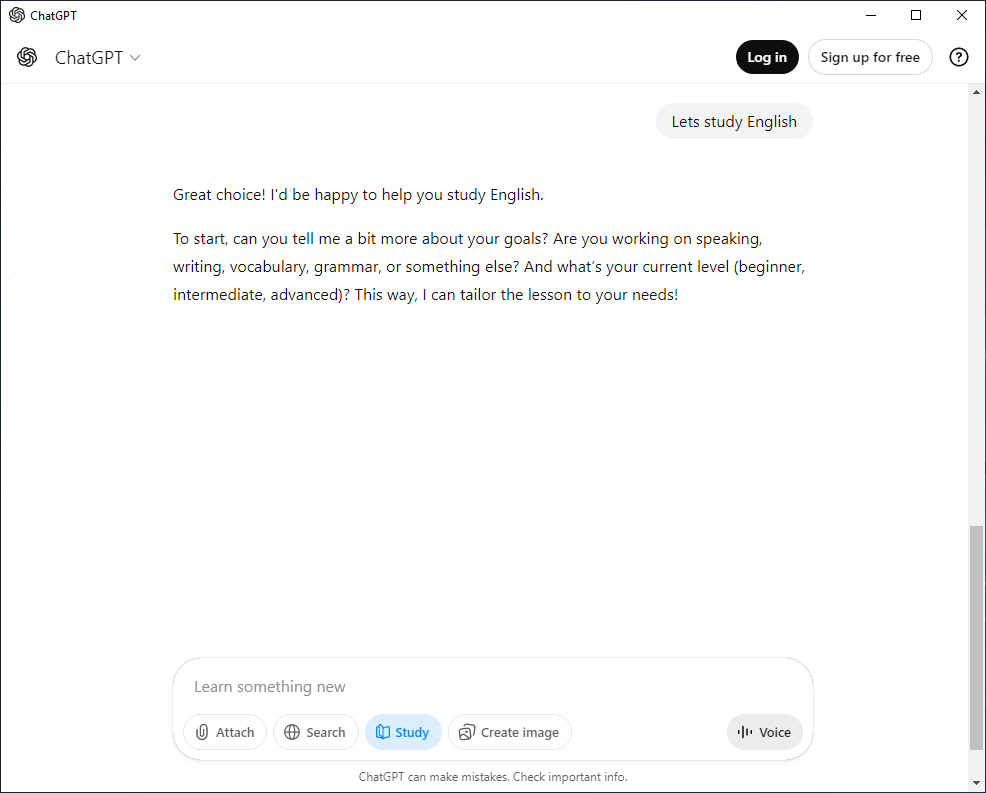
This flexibility makes the desktop app a powerful everyday tool for both personal and professional workflows.
Tips & Best Practices
- Be clear and specific in your prompts to get more accurate results.
- Break complex tasks into smaller questions for better responses.
- Use ChatGPT as a collaborative tool — iterate, refine, and explore ideas step by step.
Explore the Project
📥 Installation
Learn how to install and set up ChatGPT Desktop on your system.
🏠 Home
ChatGPT Desktop homepage.
⭐ Features
Detailed feature breakdown.
🖼️ Screenshots
Visual tour of the interface and key features.
⬇️ Downloads
Get the latest releases, installers & binaries.
📜 Changelog
Detailed changelog breakdown.
🤝 Contributing
How to help improve ChatGPT Desktop.
Explore our other projects
💻🖥 Other Desktop Projects
View our other Desktop projects that bring popular apps to your Windows PC.